 Francesco Chiaramonte
Introduction
Digital art tattoos are everywhere—from anime panels and custom illustrations to graphic design and memes. But screens aren't skin. If you want your digital artwork to translate cleanly into ink, you need to prepare it the right way.
In this guide, you'll learn how to convert digital art into a tattoo, which styles work best, and how to use the photo to tattoo converter to create a stencil-ready design.
Step 1: Choose the Right Type of Digital Art
Some digital art converts better than others.
Great for tattoos:
- Vector illustrations
- Bold line art
- Minimal graphics
- High-contrast designs
More challenging:
- Extremely detailed paintings
- Low-resolution screenshots
- Art with soft, noisy gradients
If the art is complex, plan for simplification or stylization.
Step 2: Clean the File Before You Convert
Use any basic editor (Photoshop, Photopea, Canva) to:
- Crop tightly to the subject
- Increase contrast
- Remove cluttered backgrounds
- Export at high resolution (PNG preferred)
This makes the design easier to translate into linework or shading.
Step 3: Convert to Tattoo Format
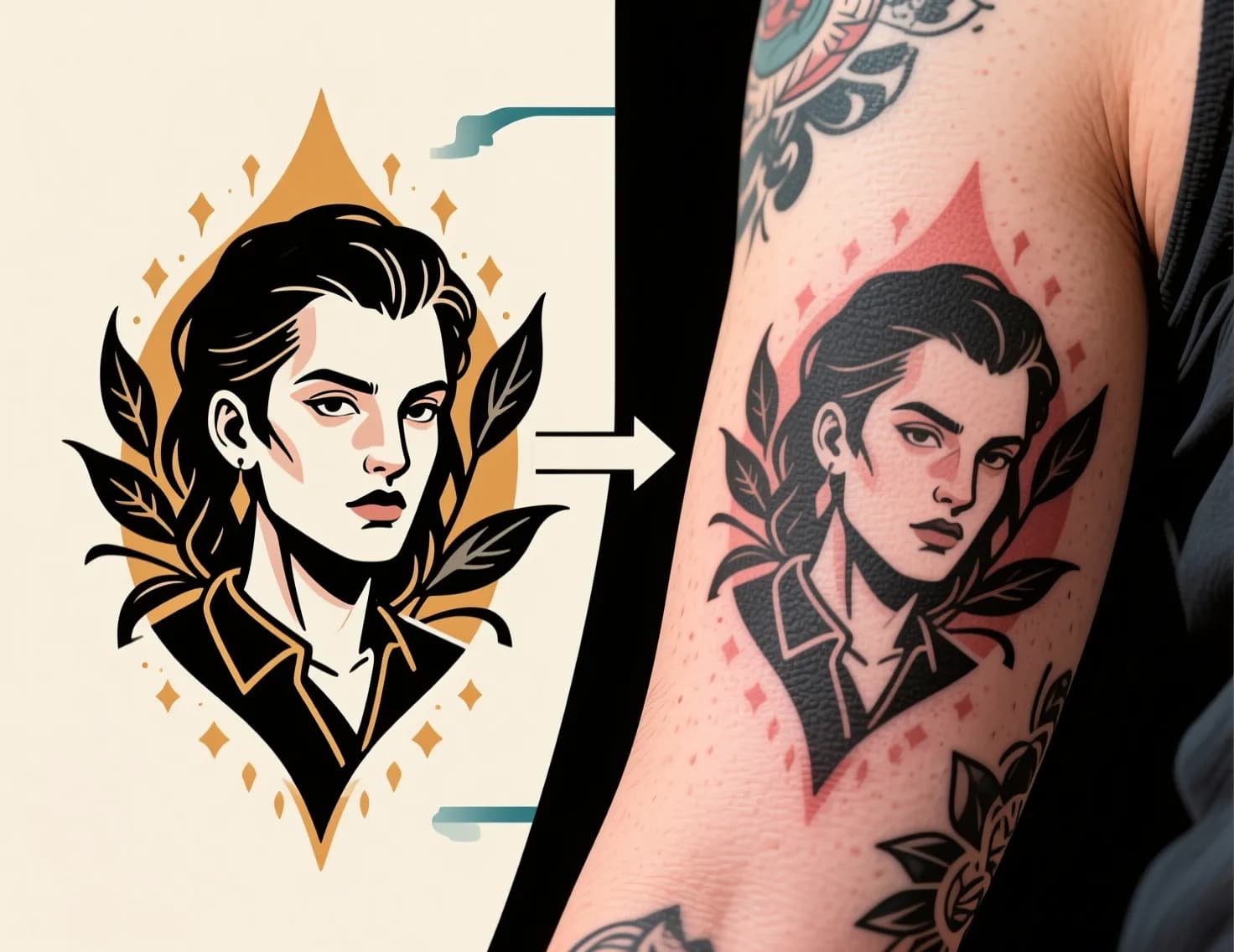 Vector art to tattoo conversion
The best way to preview conversion is to run your file through the Image to Tattoo Converter. Test multiple output styles:
- Lineart for crisp outlines
- Sketch for hand-drawn texture
- Minimal for clean, simple shapes
If you're unsure about style, check image to tattoo vs freehand to understand what your artist can adapt.
Step 4: Match the Style to Placement
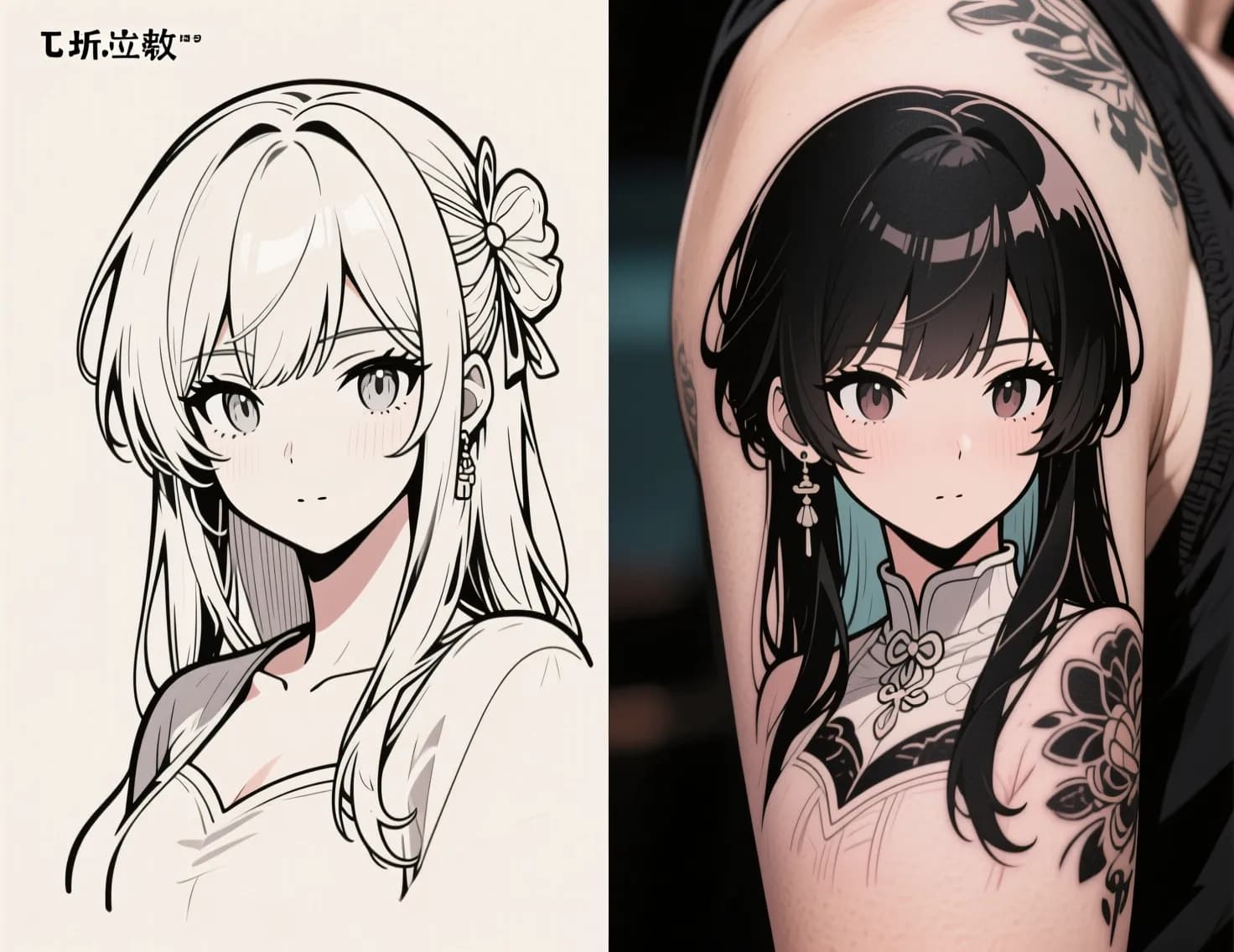 Anime digital art to tattoo
Different placements demand different detail levels:
- Small placements (wrist, ankle): use minimal or lineart
- Medium placements (forearm, calf): sketch or clean shading
- Large placements (back, thigh): realism or detailed illustration
Always scale the design before committing.
Step 5: Get Artist Feedback Early
Digital art tattoos often look best when the artist adapts the design slightly for flow and longevity. Bring:
- The original digital file
- Your AI-generated conversion
- Any reference tattoos you love
If the tattoo is emotional (memorial or portrait-based), read how to turn a picture of a loved one into a tattoo for additional planning.
Common Pitfalls to Avoid
- Using low-res screenshots (lines get jagged)
- Ignoring skin flow (design looks "stuck on")
- Over-detailing small tattoos (details blur over time)
Final Thoughts
Digital art can become an incredible tattoo—but it needs smart preparation. If you start with a clean file and test it in the photo to tattoo converter, you'll arrive at your tattoo appointment with clarity and confidence.
Need more help? Read how to prepare your photo for a tattoo conversion or explore more ideas in our AI Tattoo Generator.